Add your Texo email to the Apple Mail app on your Mac using a secure IMAP connection.
Your Texo email settings
Replace yourdomain.co.za with your own domain, and use your full email address as the username. The outgoing (SMTP) server is the same as the incoming server.
- Incoming server (IMAP): mail.yourdomain.co.za · port 993 · SSL/TLS.
- Outgoing server (SMTP): mail.yourdomain.co.za · port 465 · SSL/TLS · authentication required.
- Username: your full email address · Password: your email account password.
Step by step
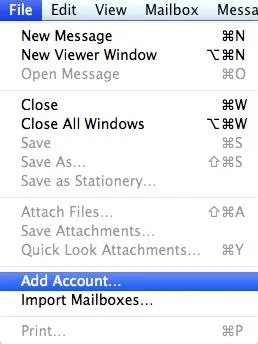
- In Mail, open the File menu and choose Add Account… (on newer versions, use Mail → Add Account and pick Other Mail Account…).
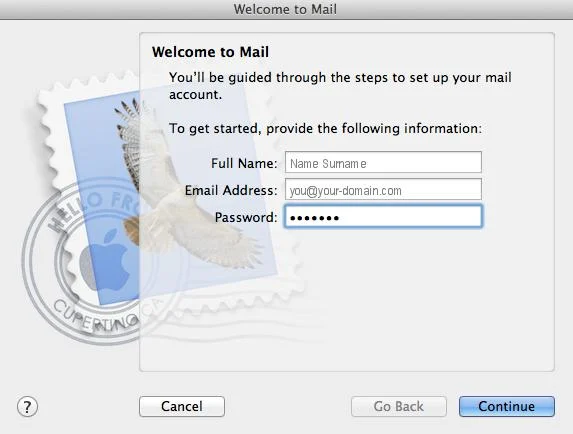
- Enter your Full Name, full Email Address and Password, then click Continue.
- Mail looks up your settings. If you're asked to confirm them, set Account Type to IMAP and set both the Incoming and Outgoing Mail Server to mail.yourdomain.co.za, with your full email address as the user name. macOS uses SSL automatically (IMAP 993, SMTP 465). Finish to add the account.
Once saved, send yourself a test email to confirm it works. If anything won't connect, double-check the password and that both servers use SSL on the ports above, then submit a support ticket and we'll help.
Last updated 1 July 2026.