Add your Texo email to the Gmail app on your phone or tablet using a secure IMAP connection.
Your Texo email settings
Replace yourdomain.co.za with your own domain, and use your full email address as the username. The outgoing (SMTP) server is the same as the incoming server.
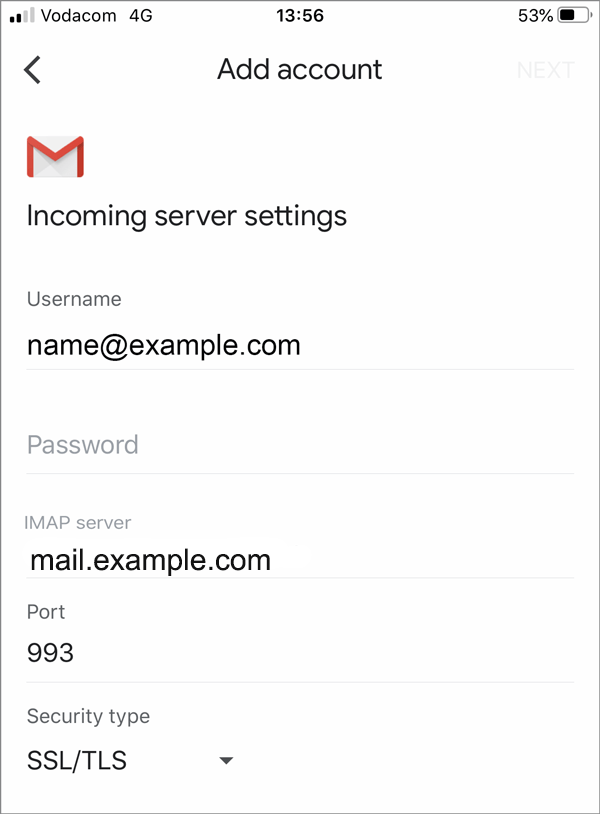
- Incoming server (IMAP): mail.yourdomain.co.za · port 993 · SSL/TLS.
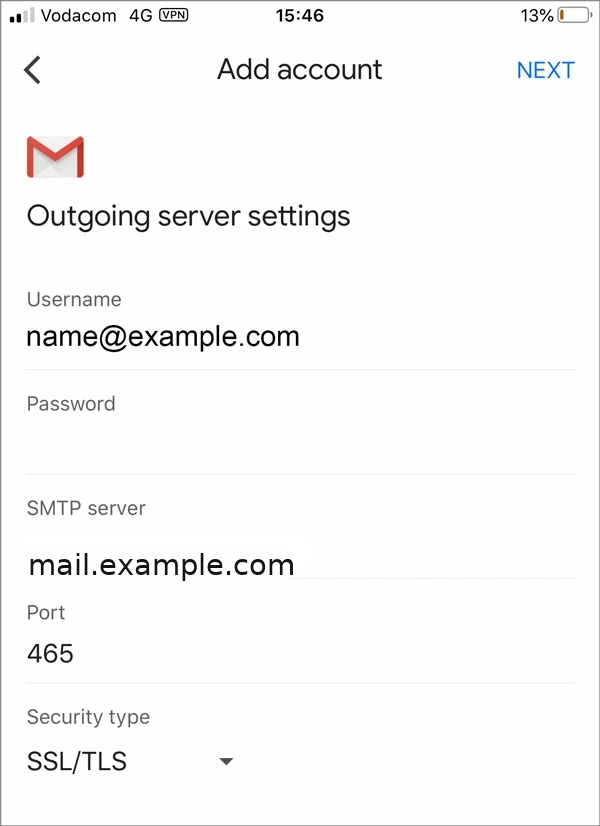
- Outgoing server (SMTP): mail.yourdomain.co.za · port 465 · SSL/TLS · authentication required.
- Username: your full email address · Password: your email account password.
Step by step
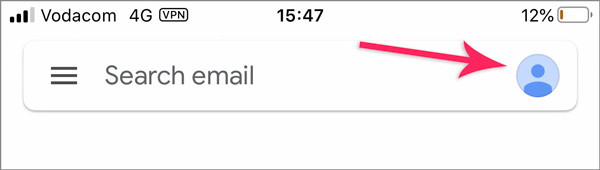
- Open the Gmail app and tap your profile picture in the top-right corner.
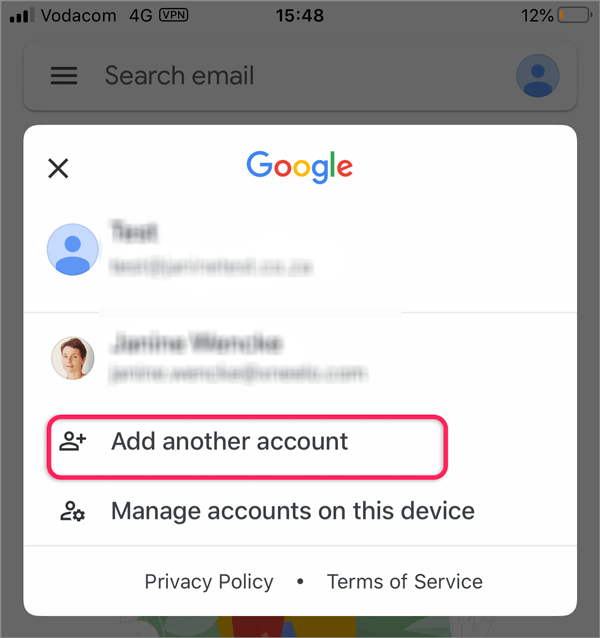
- Tap Add another account.
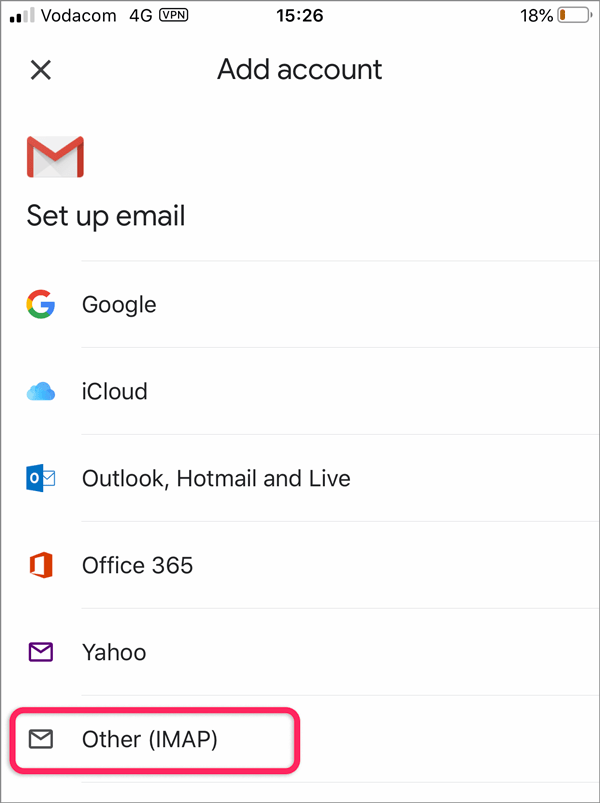
- Choose Other (IMAP).
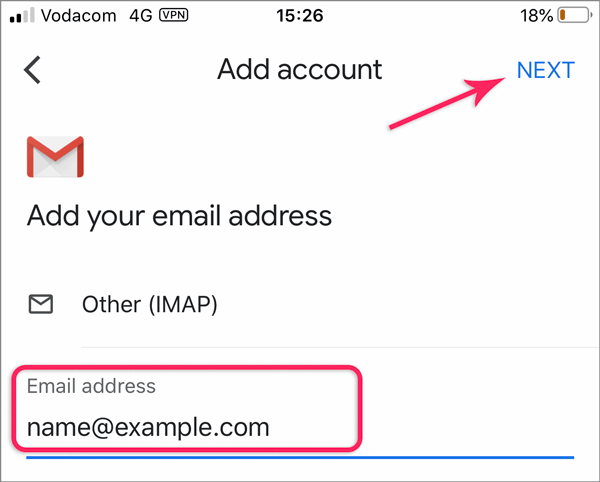
- Enter your full email address and tap Next.
- On Incoming server settings, enter your password and set the IMAP server to mail.yourdomain.co.za, Port 993, Security type SSL/TLS. Tap Next.
- On Outgoing server settings, enter your password and set the SMTP server to mail.yourdomain.co.za, Port 465, Security type SSL/TLS. Tap Next.
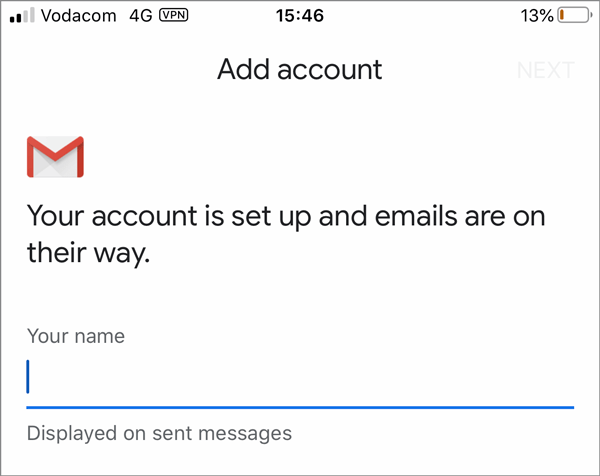
- Enter the name to show on your sent messages and tap Next — your account is set up.
Once set up, send yourself a test email to confirm it works. If anything won't connect, double-check the password and that the servers use SSL on the ports above, then submit a support ticket and we'll help.
Last updated 1 July 2026.