Set up your Texo email in Outlook for Microsoft 365, Outlook 2019 or Outlook 2016 using a secure IMAP connection.
Your Texo email settings
Replace yourdomain.co.za with your own domain, and use your full email address as the username. The outgoing (SMTP) server is the same as the incoming server.
- Incoming server (IMAP): mail.yourdomain.co.za · port 993 · SSL/TLS.
- Outgoing server (SMTP): mail.yourdomain.co.za · port 465 · SSL/TLS.
- Username: your full email address · Password: your email account password.
Step by step
- Open Outlook and click the File menu (top-left).

- Click Add Account.

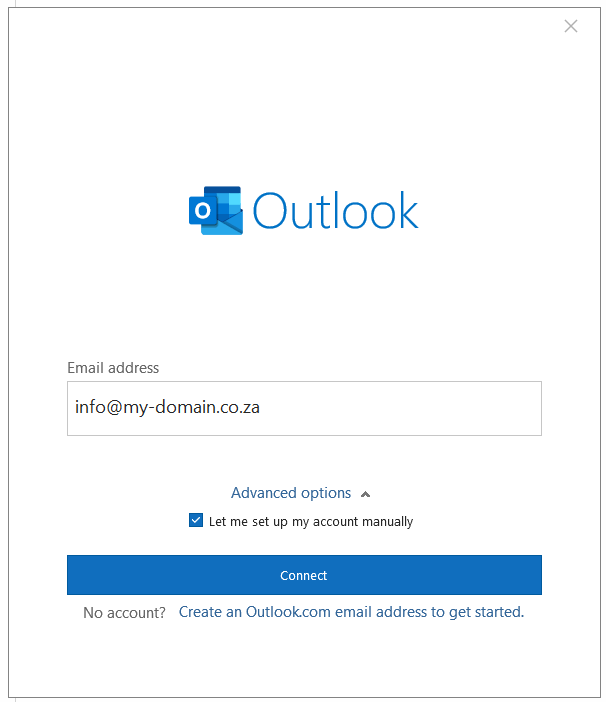
- Type your full email address, click Advanced options, tick Let me set up my account manually, then click Connect.
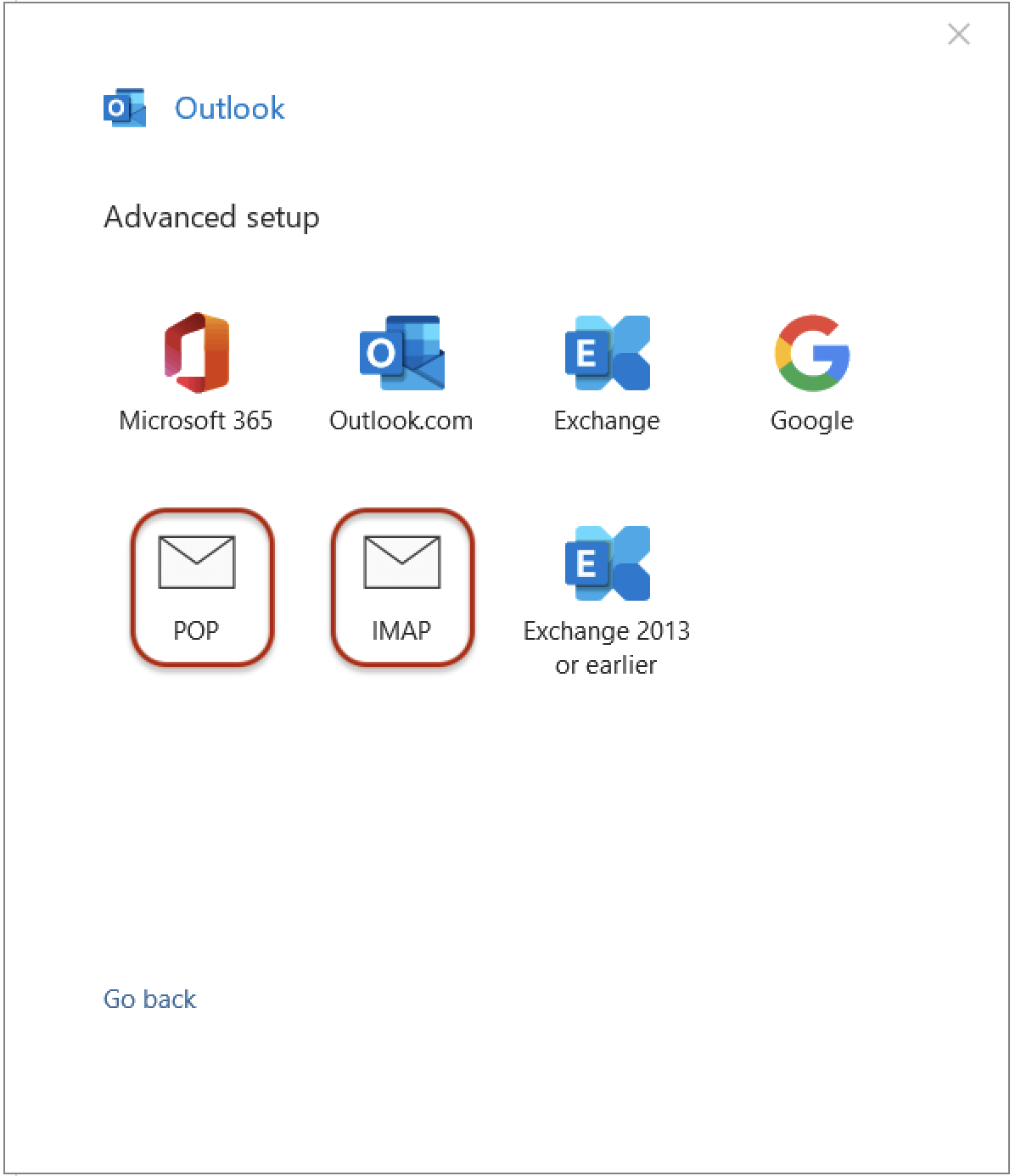
- Choose IMAP.
- Under Incoming mail, set the server to mail.yourdomain.co.za, port 993, encryption SSL/TLS. Under Outgoing mail, set the server to mail.yourdomain.co.za, port 465, encryption SSL/TLS. Click Next.

- Enter your email account password and click Connect.

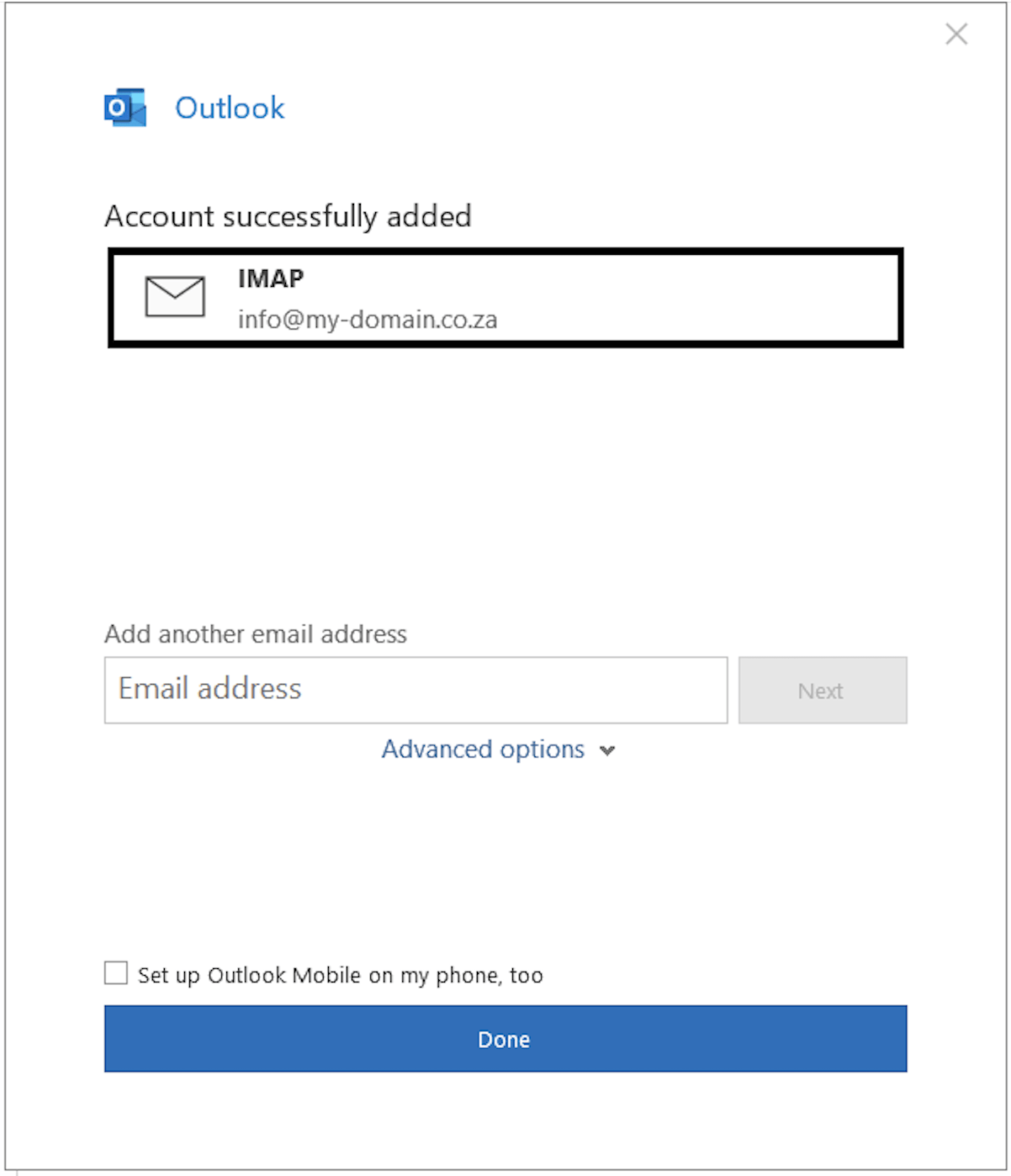
- You'll see Account successfully added — click Done. Send a test email to confirm.
If Outlook can't connect, double-check the password and that both servers use SSL on the ports above, then submit a support ticket and we'll help.
Last updated 1 July 2026.
