Texo Restore lets you recover website files, databases, and email from Texo automated backups. Restore a full site, a single file or folder, or save a copy under a new name next to your live files.
Texo Restore is available in cPanel on Texo hosting accounts. Backups are created automatically (daily, weekly, and monthly snapshots for files, plus regular database dumps). You can restore without opening a support ticket.
Contents
- Opening Texo Restore
- Restore by Date
- Website Files
- Browse and restore selected files
- Restore as a copy (new name)
- Databases
- Things to know
Opening Texo Restore
- Log in to cPanel.
- Open the Files section.
- Click Texo Restore.

The tool opens with four tabs: Restore by Date, Website Files, Databases, and Email.
Restore by Date
Use this when you want the closest backups to a specific day (files and/or databases together).
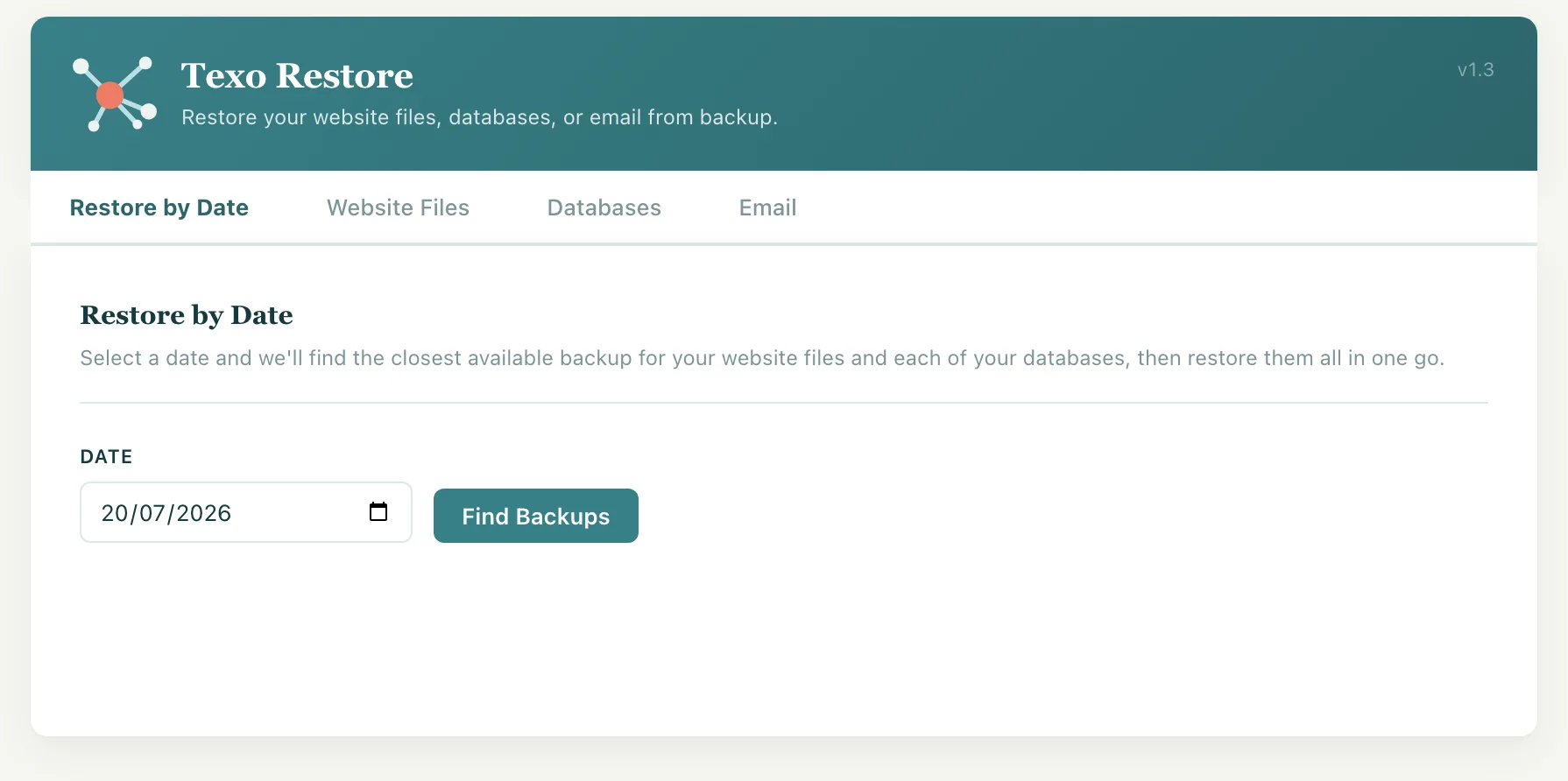
- Open the Restore by Date tab.
- Choose a date and click Find Backups.
- The tool shows the closest website file snapshot and database dumps near that date.
- Tick or untick the items you want.
- Click Restore Selected, review the confirmation, then Restore Now.
Keep the browser tab open until the restore finishes. Large file restores can take several minutes.
Website Files
The Website Files tab lists available file snapshots (daily, weekly, monthly). Snapshots are listed newest first.
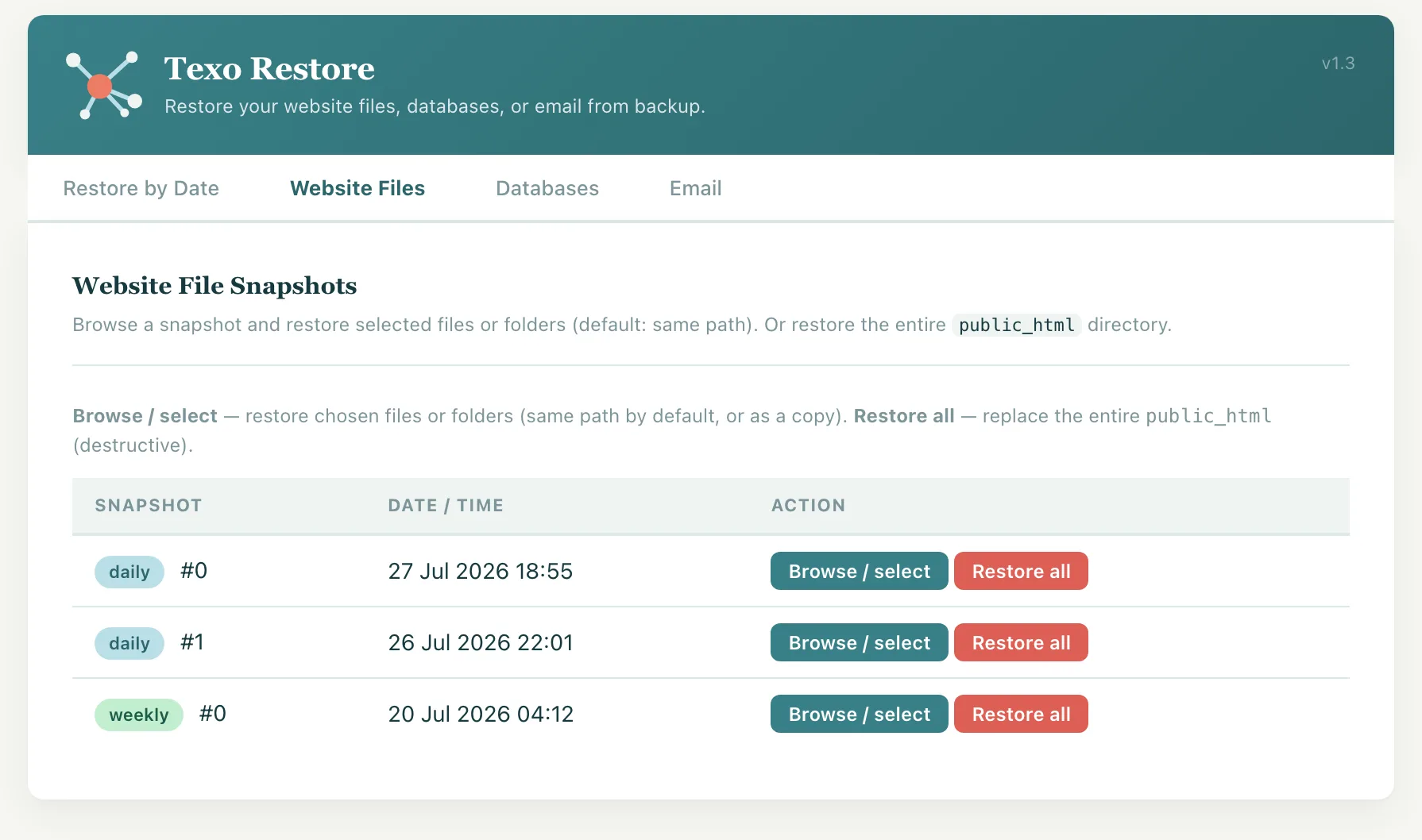
For each snapshot you can:
- Browse / select — open the snapshot and restore only chosen files or folders (recommended when you do not need a full site restore).
- Restore all — replace the entire
public_htmldirectory with that snapshot. This is destructive: live files not present in the snapshot can be removed.
Tip: Prefer Browse / select when you only need a theme, plugin, or a few files. Use Restore all only for a full site rollback.
Browse and restore selected files
After you click Browse / select on a snapshot:
- Navigate folders like a file manager (click a directory name to open it).
- Tick the files and/or folders you want.
- Leave Restore as copy unchecked to restore in place (overwrite those paths only; other live files are not deleted).
- Click Restore selected, review the list, then Restore Now.

In-place restore updates only the paths you selected. It does not wipe the rest of public_html.
Restore as a copy (new name)
Use this when you want the backup version alongside your live files — for example to compare a theme or config without overwriting production yet.
- In the browser, select the file(s) or folder(s).
- Enable Restore as copy (new name).
- Each selected item gets its own destination field (defaults often use a
-restoredname). Edit any destination path if needed. - Click Restore selected, confirm the mapping list, then Restore Now.

Original live paths are left alone. If a destination path already exists, that destination will be overwritten.
Databases
The Databases tab restores a MySQL database from a dump file.

- If you have more than one database, choose it from the list first.
- Dumps are listed by period and date (typically more than one dump per day).
- Click Restore next to the dump you want, then confirm.
Note: Restoring a database replaces all current data in that database. Choose a dump from before the problem occurred when possible.
The Email tab restores mailboxes from the latest weekly email backup (when available for your account).
- The backup date and size are shown when a backup is available.
- Restore adds missing messages from the backup; existing messages are not bulk-deleted by the restore process.
- Mail received after the backup date will not be in the backup.
If the tab shows that email backup is unavailable, the weekly job may not have run yet for that account — contact support if you need an older mailbox restored urgently.
Things to know
- Confirm carefully. Full
public_htmlrestores and database restores overwrite live data and cannot be undone from this tool. - Selective file restore only changes the paths you choose (or their copy destinations).
- Keep the tab open while a restore is running. Large sites can take a long time for full file restores.
- Errors: note the message text and open a support ticket if needed. Server-side logs help us investigate.
Still need a hand? Submit a support ticket and we’ll help you out.