← All email setup guides
This method uses the Windows Control Panel → Mail applet, which works on every version of Outlook for Windows (Microsoft 365, 2021, 2019, 2016, 2013 and 2010) using a secure IMAP connection.
Your Texo email settings
Replace yourdomain.co.za with your own domain, and use your full email address as the username. The outgoing (SMTP) server is the same as the incoming server.
- Account type: IMAP (recommended).
- Incoming server (IMAP): mail.yourdomain.co.za · port 993 · SSL/TLS.
- Outgoing server (SMTP): mail.yourdomain.co.za · port 465 · SSL/TLS · authentication required.
- Username: your full email address · Password: your email account password.
Step by step
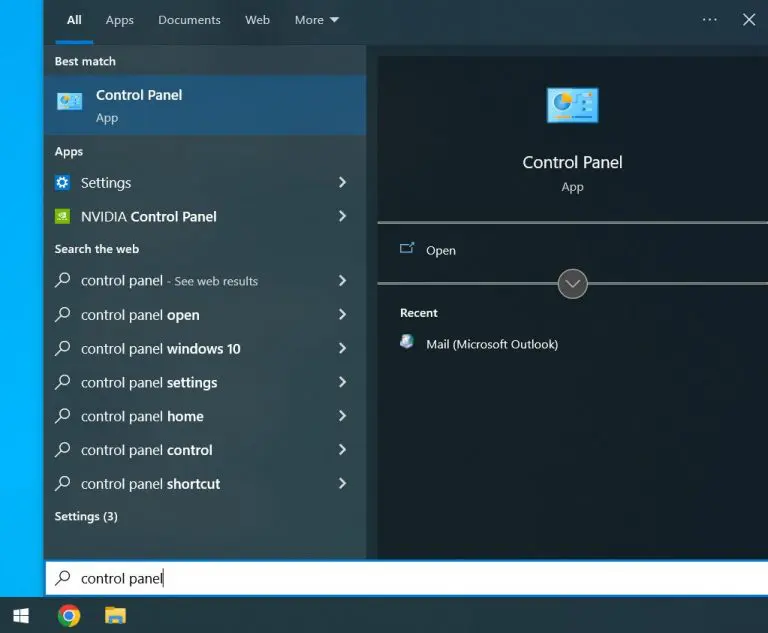
- Close Outlook. Open the Windows Start menu, type Control Panel and open it.
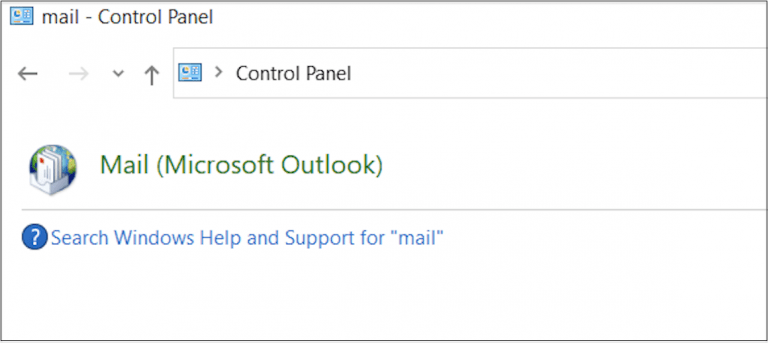
- In Control Panel, use the search box (top-right) and type mail.

- Click Mail (Microsoft Outlook).
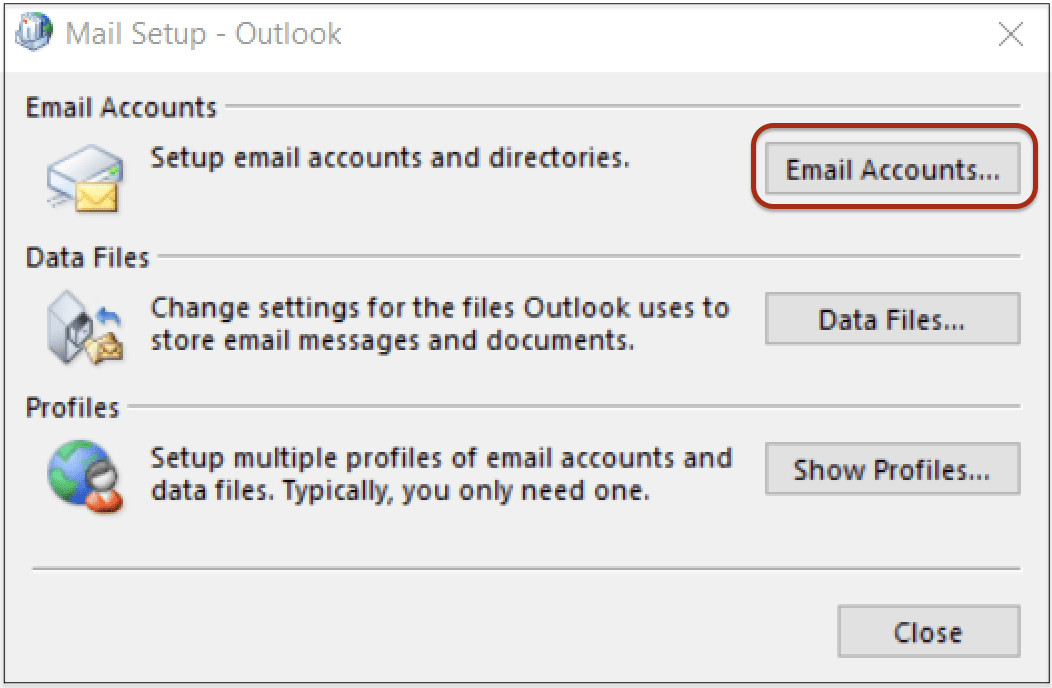
- In the Mail Setup window, click Email Accounts….
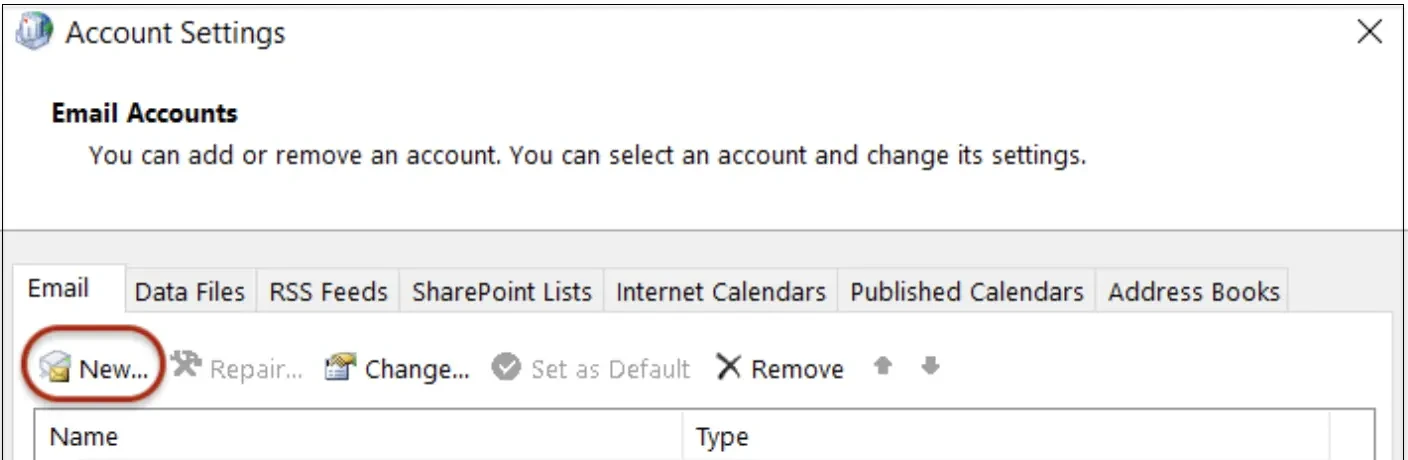
- On the Email tab, click New.
- On Auto Account Setup, select Manual setup or additional server types, then click Next.
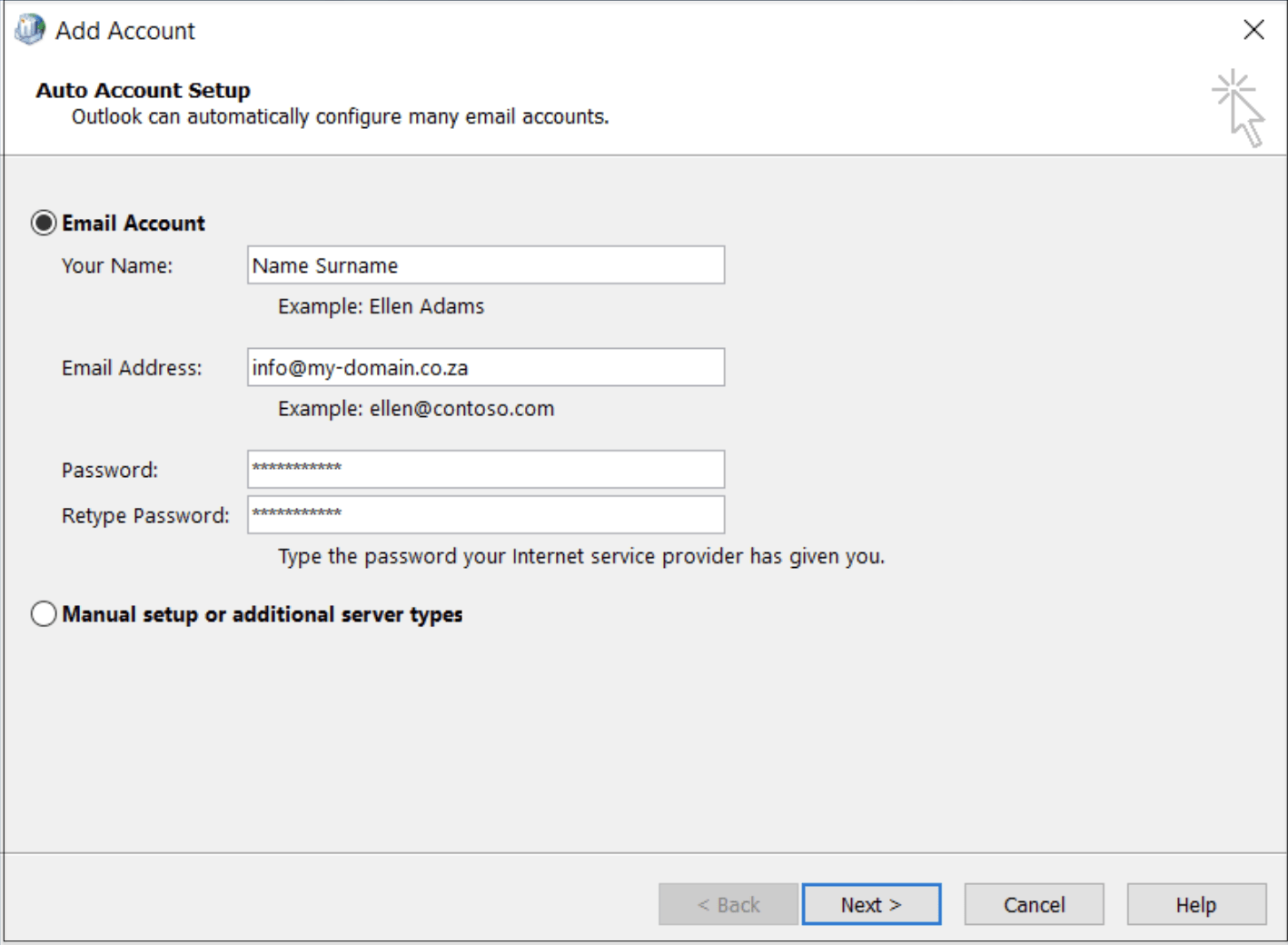
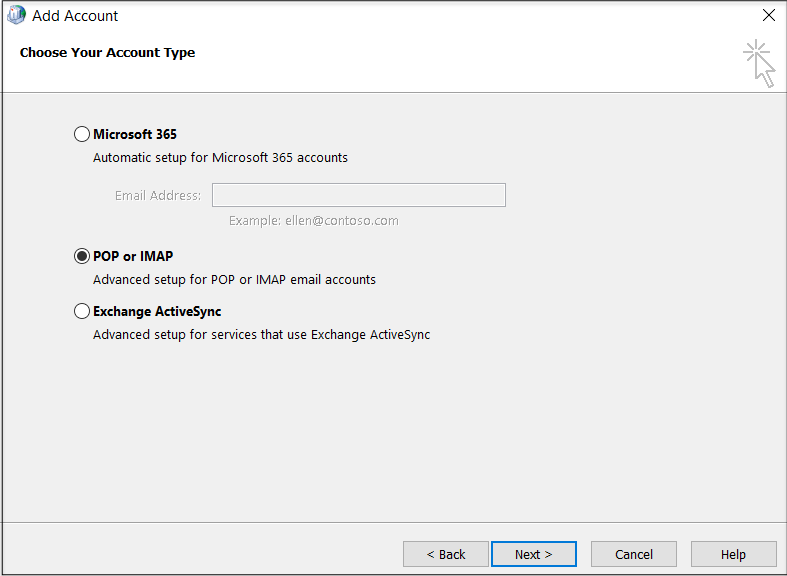
- Choose POP or IMAP, then click Next.
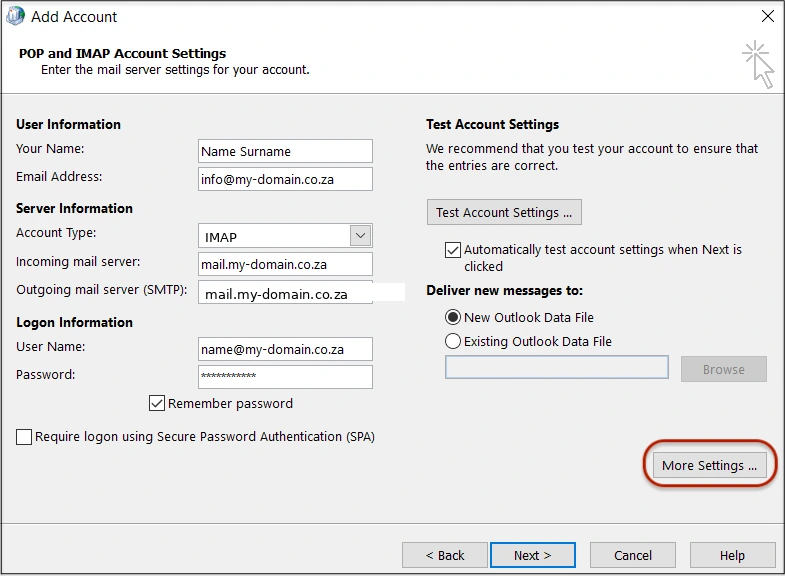
- Fill in the POP and IMAP Account Settings form: your name and full email address; set Account Type to IMAP; set both the Incoming and Outgoing (SMTP) server to mail.yourdomain.co.za; use your full email address as the User Name and enter your password. Then click More Settings.
- On the Outgoing Server tab, tick My outgoing server (SMTP) requires authentication and leave Use same settings as my incoming mail server selected.

- On the Advanced tab, set the Incoming server (IMAP) to 993 and the Outgoing server (SMTP) to 465, both using SSL/TLS. Click OK.

- Back on the account form, click Next — Outlook tests the connection — then click Finish.
If Outlook can't connect, double-check the password and that both servers use SSL on the ports above, then submit a support ticket and we'll help.